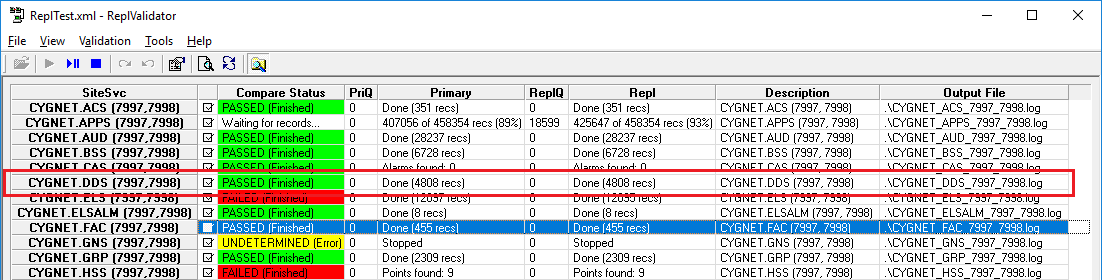
When the ReplValidator has completed the service record comparisons, the Compare Status column shows whether the service comparison has Passed or Failed and that the test is completed. A test will be marked as PASSED if all records match between the primary and the replicated service. If one or more records differ between the two services the test is marked as FAILED.
The Primary and Repl columns display how many records were checked for each service. The results of the replication validation are output to the Output File specified in the configuration file.
When the Enable Log Viewer Refresh option is checked, the detailed test results will be displayed in the lower pane.
|
|
| ReplValidator Analysis |
The columns in the upper pane of the ReplValidator utility are described below.
| Column | Description |
|---|---|
|
SiteSvc |
The SITE.SERVICE and domain IDs of the service pair. |
|
Check box |
Indicates whether this service pair is included in the comparison. |
|
Compare Status |
Shows whether the service comparison has Passed or Failed and that the comparison is completed. Possible states include the following:
|
|
PriQ |
The number of records in the Primary Queue waiting to be checked. The value will return to 0 once validation is complete. |
|
Primary |
The number of records checked on the Primary service. When validation is in process a percentage of the records that have been checked is displayed. |
|
ReplQ |
The number of records in the Replication Queue waiting to be checked. The value will return to 0 once validation is complete. |
|
Repl |
The number of records checked on the Replicated service. When validation is in process a percentage of the records that have been checked is displayed. |
|
Description |
The SITE.SERVICE and domain IDs of the service pair. |
|
Output File |
The service output file specified in the .xml configuration file. |
After validation (or while running is paused) you can view properties for a pair of replicated services that have been compared.
To View Service Properties
 (Properties) on the toolbar.
|
|
|

